

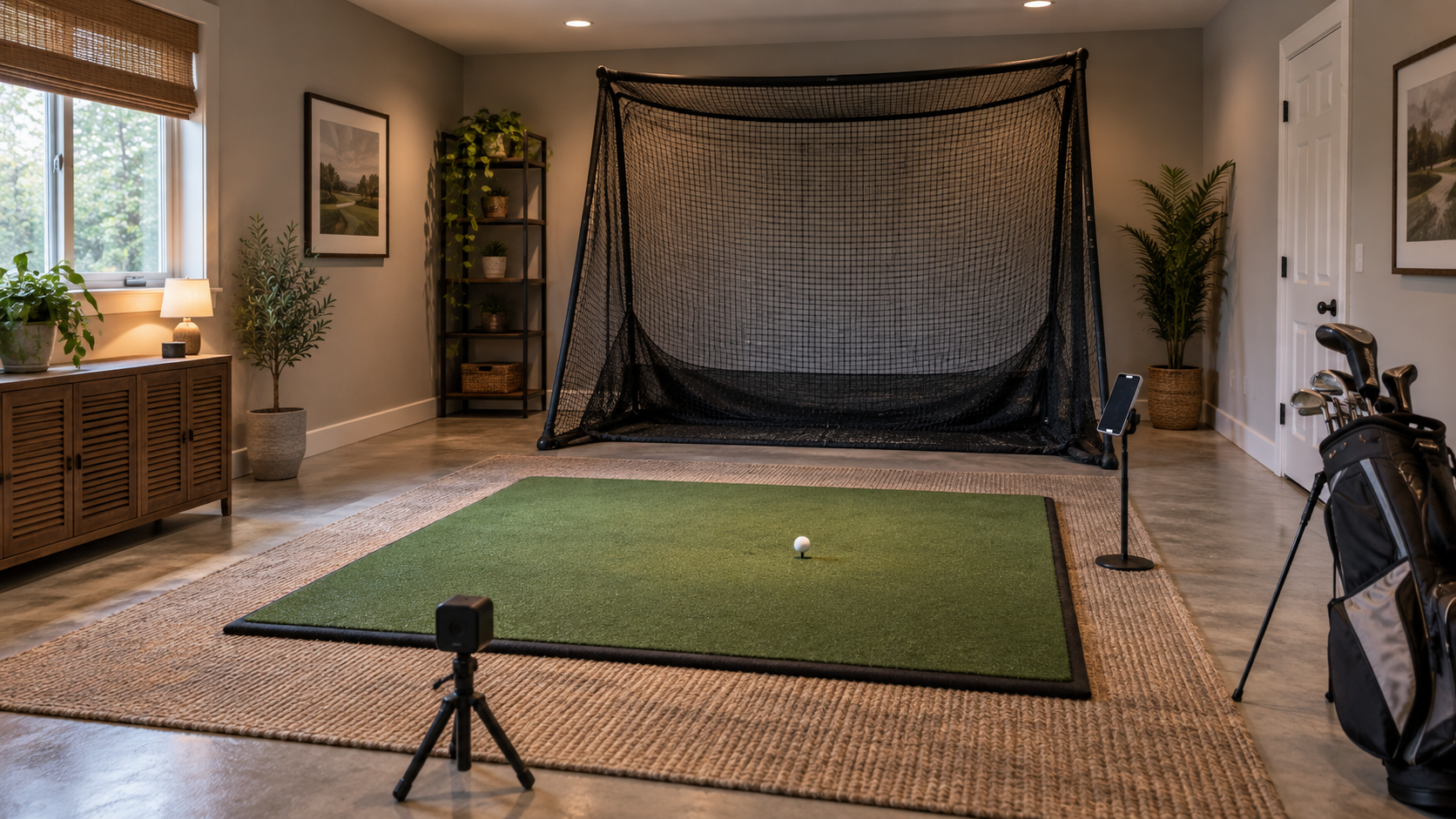
For basic indoor practice with a Garmin Approach R10, you need the monitor and supplied tripod, a compatible mobile device for setup, the Garmin Golf app, a suitable hitting mat, clubs and regulation golf balls, and a properly installed net or impact screen.
A paid Garmin membership, projector, and computer are optional for that basic practice route. They become relevant when you choose a particular course-play or display experience.
Before buying the remaining equipment, check three things separately: the R10’s tracking layout, every intended golfer’s swing clearance, and the installation requirements for your mat and impact protection. Enough space for the radar does not establish that the complete setup is safe.
What do you actually need to use an R10 indoors?
The table below starts with basic practice through Garmin Golf. Additional software can change which devices and connections you need.
| Item | Required or optional? | What to verify |
|---|---|---|
| R10 and supplied tripod | Required | Correct mounting, placement, and current firmware |
| Compatible mobile device | Required for initial setup and Garmin’s mobile practice route | Exact device compatibility; some desktop software connects directly after setup |
| Garmin Golf app and account | Required for initial setup and Garmin Golf practice | Successful pairing and account access |
| Suitable hitting mat | Required under Garmin’s indoor checklist | Mat area, usable stance space, and device height |
| Clubs and regulation golf balls | Required for normal practice | Clearance for the clubs each golfer intends to use |
| Suitable net or impact screen | Required impact protection | Installation instructions, rear clearance, and shot containment |
| Surrounding protection and frame padding | Required as applicable to the installation | Coverage for high and errant shots; protection around exposed framing |
| Titleist RCT balls | Optional | Whether improved indoor spin capture matters to your practice |
| Garmin Golf membership | Optional for basic practice | Required for Home Tee Hero |
| Other simulator software | Optional | Supported device, connection method, and license |
| Projector | Optional | Needed for a projected display experience |
| TV or external monitor | Optional | Compatible display output or screen mirroring |
| Computer | Conditional | Required for a chosen desktop software route |
| Commercial alignment accessories | Optional | Whether they solve a specific placement problem |
Garmin documents that its driving-range practice feature does not require a membership. Choose the experience you want before adding subscriptions or display equipment to the shopping list.
Check the room and place the R10
Garmin’s room minimum versus your swing clearance
Garmin’s indoor setup guidance specifies a room at least 15 ft long × 8 ft wide × 8 ft high. Garmin also notes that a larger space can improve accuracy.
Treat this as the R10’s published indoor minimum. Each golfer still needs an unobstructed backswing and follow-through, with adequate overhead clearance.
Measure the usable space around the proposed hitting position. Include beams, garage tracks, lights, shelving, and the equipment itself. Measure ceiling clearance from the finished hitting surface, accounting for a mat or platform.
Our golf simulator room-dimensions guide explains how to record these measurements without turning one product’s minimum into a universal room requirement.
Device-to-ball and ball-to-net distances
Garmin’s Preparing for a Shot instructions place the R10 6–8 ft behind the tee location. Its indoor support guidance requires at least 8 ft from the ball to the net or impact screen.
Adding those distances produces a 14–16-ft device-to-impact-surface span. That is a Flag & Fringe calculation from Garmin’s placement figures. It excludes other clearances and does not replace the published room minimum.
At the 8-ft device placement and 8-ft ball-flight minimum, the marked span alone is 16 ft. A 15-ft room cannot accommodate that particular layout, even before installation clearances.
Mark the device, ball, and impact surface on your room sketch before checking whether the layout fits.
Additional space behind the device and impact surface
Allow for the device’s footprint, plus any required clearance and access space behind it.
At the other end, check the exact net or screen instructions for the space needed behind the impact surface. Garmin requires adequate free space there but does not provide a universal numeric buffer.
Your room also needs to accommodate the golfer, enclosure, access routes, and any display equipment. Record these requirements alongside the tracking distances.
Set up the hitting mat and device height
Garmin’s indoor checklist specifies a mat at least 2 ft long × 2 ft wide. That minimum does not establish enough stance space for every golfer. Check the area occupied by both the ball and golfer, including each intended handedness.
Garmin gives a specific height reference: when using a golf mat, the bottom edge of the R10 must sit above the mat.
If the raised hitting surface leaves the R10 too low, Garmin’s guidance allows the device to be elevated on a stable flat surface while remaining on its supplied tripod.
Check the placement instructions together. Keep the device on its supplied tripod, with its bottom edge above the raised hitting surface. Do not assume Garmin requires a particular mat thickness or that the whole device must sit exactly level with the ball.
The reviewed Garmin instructions do not prescribe a mat brand, thickness, or premium construction. Those choices need their own assessment, including the mat manufacturer’s instructions and whether the surface works with your planned stance and room.
For normal operation, Garmin says the R10 can compensate for some tilt and will alert you if it is tipped too far. Calibration has a stricter condition: Garmin’s radar troubleshooting instructions require a surface checked with a leveling tool. Follow that procedure if calibration is needed.
Choose and install the net or impact screen
A net can support practice while you view results on a device. An impact screen can also serve as a projection surface. Either choice needs suitable installation and containment.
Garmin’s indoor safety instructions call for:
- Adequate free space behind the net or screen.
- Enough height and coverage for high-lofted and errant shots.
- Padding around net or enclosure frames to help reduce ricochet.
Then check the instructions for the exact impact-protection product.
For example, Carl’s Place bounce-back guidance advises placing its screen 12–16 inches in front of any surface and standing at least 10 ft away when swinging.
The standing distance should not be relabeled as an exact ball-to-screen distance. These figures should not be applied automatically to another manufacturer’s product.
Before purchasing, confirm the outside enclosure dimensions, rear buffer, instructed hitting position, mounting arrangement, and surrounding protection. Keep any unknown clearance unresolved in the plan.
Align the R10 and check the indoor environment
Align the R10’s red line with the tee location and shot target. Garmin suggests using a club on the ground to help check the line.
Its current owner’s manual also tells you to enter the actual device-to-tee distance when prompted and wait for the flashing green status light before hitting.
Check the room’s radar environment as well. Garmin identifies appliances, fans, fluorescent lights, vehicles, and shiny or metallic surfaces as potential interference sources. Its placement guidance suggests that dull coverings may help with reflective areas.
Low light does not prevent radar tracking, according to Garmin, but Swing Capture video needs lighting. You also need enough visibility to use the room safely.
If readings remain consistently inaccurate, check placement, alignment, device height, interference, and weather settings before following Garmin’s calibration procedure. Weather settings can also affect reported distances, so check them when results seem inconsistent.
Do you need RCT balls?
Use regulation golf balls for normal practice. Titleist RCT balls are an optional way to improve indoor spin capture.
Garmin’s RCT guidance specifies current firmware, at least 8 ft to the net, and two ball rotations for the most reliable results. Some shots may need more flight distance, potentially up to 20 ft. Spin can still be estimated when the signal is insufficient.
Do not add metallic dots as a default setup step. Garmin’s radar-accuracy guidance warns that intentionally marked balls, including metallic stickers, may degrade performance.
Choose your app, device, and software
Choose the software route before buying a computer or repurposing a tablet.
Garmin Golf handles initial setup and Garmin’s practice features. Home Tee Hero is a standalone app, with a Garmin Golf membership required for its course-play experience. Garmin announced that arrangement in January 2026.
Third-party software has its own license, host-device requirements, and connection method. A Garmin membership does not include every third-party platform.
Software and subscription options
| Software | Current R10 support | Platform/device requirements | Connection method | Payment status |
|---|---|---|---|---|
| Garmin Golf practice | Garmin’s own practice route | iOS 18+; Android 9+ phone with a 64-bit processor and native Google Play. Android tablets unsupported; iPad functionality is documented with phone-oriented formatting. | Bluetooth connection through Garmin Golf on the mobile device | Basic driving-range practice requires no paid membership |
| Garmin Golf membership | Garmin’s paid feature entitlement | Compatible device and account for the features used | Uses the relevant Garmin app’s connection | Optional paid plan; a 30-day trial is documented, subject to eligibility and automatic renewal |
| Home Tee Hero | Garmin’s standalone simulation app | iOS 18+ on compatible iPhones/some iPads; iPads need A12 or better. Android 10+ phones with native Google Play. | Garmin Golf setup, followed by Home Tee Hero’s connection flow | Active Garmin Golf membership required |
| E6 CONNECT | Officially supported third-party option | Supported Windows PC or iOS device; PC route also needs a compatible smartphone | For PC, the R10 remains connected through Garmin Golf on the smartphone; phone and E6 PC must be on the same Wi-Fi network | Five-course access is documented, but confirm activation and platform entitlement; additional content needs the appropriate license/subscription |
| Awesome Golf | Officially supported third-party option | Supported Windows, macOS, iOS/iPadOS, Android, or ChromeOS host | Current guide documents direct Bluetooth; Assistant bridging is an alternative | 14-day trial; monthly, annual, and lifetime plans |
| GSPro | Officially supported third-party option | Windows 10/11 PC meeting GSPro’s hardware requirements | Direct Bluetooth through GSPro Connect | Paid annual subscription |
Check the current Garmin Golf device requirements and Home Tee Hero requirements against your exact device. An Android phone suitable for Garmin Golf may fall below Home Tee Hero’s minimum.
Garmin documents a 30-day membership trial, with automatic renewal unless canceled. Check eligibility, billing platform, and renewal terms before starting it.
Check the connection route before buying a computer
The R10 can connect directly to a computer through supported software. Awesome Golf’s current R10 guide documents direct Bluetooth connections, including Windows and macOS. Initial Garmin Golf setup is still required.
Garmin also provides an official GSPro connection guide. GSPro’s instructions describe direct PC Bluetooth through GSPro Connect. The R10 does not support putting in that route; GSPro instructs users to choose an automatic putting mode.
For the documented E6 CONNECT PC route, the R10 remains connected through Garmin Golf on a compatible smartphone. That phone must be on the same Wi-Fi network as the computer running E6 CONNECT. Keep the phone in the setup plan and follow Garmin’s E6 connection instructions.
Keep E6 included-course expectations conservative
Garmin documents access to five E6 CONNECT courses. A newer Garmin staff clarification describes access on iOS or PC through device registration, superseding older product-key advice.
Confirm the entitlement shown in your E6 account before treating those courses as available on your intended platform. Included access does not mean the full E6 library is included.
Bluetooth connectivity alone also does not establish that a software route works entirely offline. Garmin’s getting-started guidance specifies Wi-Fi or cellular data for Garmin Golf’s connected features.
Common indoor setup mistakes
- Treating tracking space as complete room clearance. Check the golfer and installation separately.
- Measuring ceiling height from the bare floor. Account for the finished hitting surface and relevant overhead obstacles.
- Leaving the R10 too low behind a raised mat. Check Garmin’s bottom-edge reference and height guidance.
- Assuming the smallest documented mat fits every stance. Plan for the intended golfers.
- Putting a screen against the wall. Verify the product’s required rear space.
- Assuming any tablet or computer will work. Check the exact app, platform, and connection route.
- Buying a subscription before selecting the software experience. Basic Garmin practice and course simulation have different requirements.
- Following outdated connection instructions. Home Tee Hero, GSPro, Awesome Golf, and E6 guidance has changed.
- Expecting special balls to fix every tracking problem. Check the physical setup and environment first.
What this means for your setup
Start with the equipment you own and assign each item a clear next step.
Suitable based on the documented checks: Keep it in the plan. Confirm the model, dimensions, and instructions before deciding whether a replacement is needed.
Known conflict: Change the layout or equipment choice before purchasing. A missing tracking distance or installation clearance cannot be solved by adding software.
Plausible but unresolved: Record the remaining question. That might be swing clearance, screen deflection space, host-device compatibility, or a software entitlement.
For the broader sequence of choosing a display path and planning missing components, use the Home Golf Simulator Planning Guide.
Plan your setup in Flag & Fringe Studio
Flag & Fringe Studio lets you enter room dimensions, record measurement confidence, and include existing or selected equipment. Where product facts are available, it can identify known dimensional conflicts and keep uncertainty visible.
Studio does not verify your individual swing, exact obstacle coordinates, screen deflection, anchoring, or projector mounting geometry. Meeting a stored room requirement leaves those installation checks to complete.
Plan your R10 setup in Flag & Fringe Studio →
Bring measured room dimensions and the models you already own. Keep unresolved requirements attached to the plan before buying the rest.
Sources and related guides
Manufacturer and official software sources
- Garmin: Indoor and outdoor R10 placement
- Garmin: Preparing for a Shot
- Garmin: Current R10 owner’s manual
- Garmin: Radar troubleshooting
- Garmin: Radar accuracy and marked-ball caution
- Garmin: Using Titleist RCT balls
- Garmin: Simulator features and membership requirements
- Garmin: Garmin Golf device requirements
- Garmin: Home Tee Hero device requirements
- Garmin: Standalone Home Tee Hero announcement
- Garmin: Connecting Garmin Golf to E6 CONNECT
- Garmin staff: E6 five-course activation clarification
- Garmin: Connecting the R10 to GSPro
- Carl’s Place: Impact-screen bounce-back guidance
- E6 CONNECT: Platforms and software requirements
- Awesome Golf: R10 connection guide
- Awesome Golf: Plans and trial
- GSPro: Official compatibility and requirements
- GSPro: R10 connection guide